
Pull Print
Send a document to print, then collect it at any printer. It only prints when you walk up, sign in and press Print.
- Who it is for
- Offices with shared printers
- What it is
- A print client, a server and an admin screen
- My part
- Design and build
- Built with
- Flutter · ASP.NET Core
Read it your way
Showing the plain-words view, written so anyone can follow it. Switch to see the technical detail.
Showing the engineering view: names of tools, how the pieces talk and why they were chosen.
Why it exists
Printing from a shared printer leaves pages sitting in the tray for anyone to read. Pull Print holds every document on a server until its owner is at the printer, signs in and presses Print. Page limits are checked on the server, so they cannot be skipped.
What it does
- 01
Held safely
A document waits on the server until you ask for it.
Jobs queued per user on the ASP.NET Core server.
- 02
Your own documents
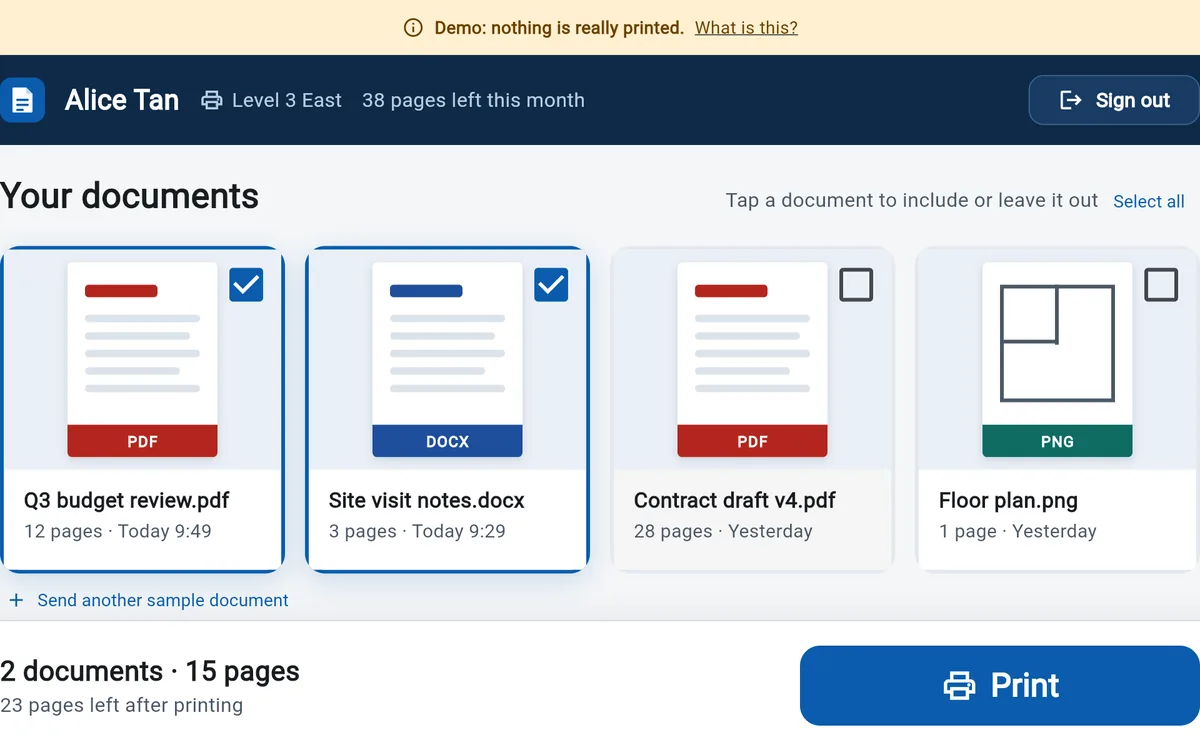
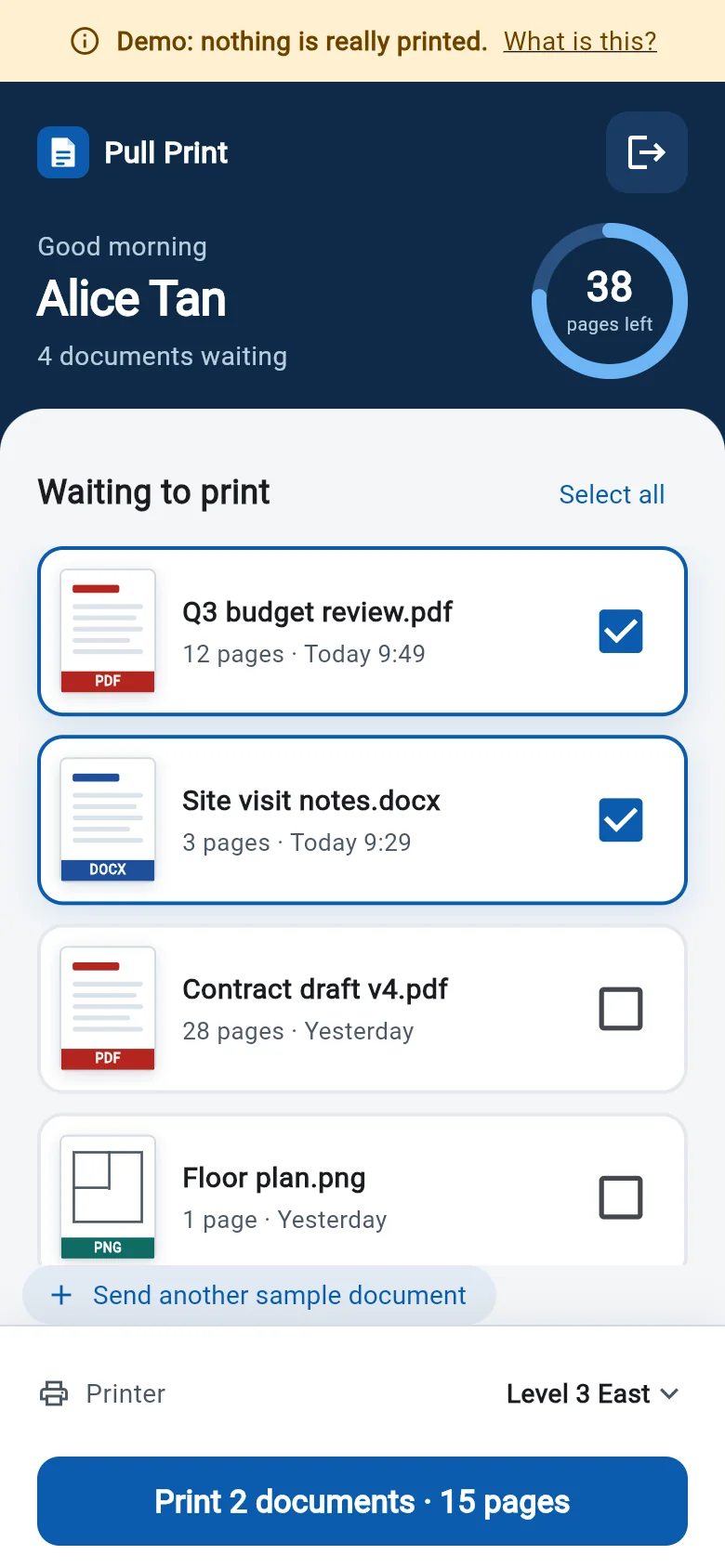
You only ever see your own, and tick the ones you want.
Per-user job listing after work-account sign-in.
- 03
Page limits
Go over your limit and Print switches off, saying by how many pages.
Quota enforced on the server; the client only reflects it.
- 04
Work-account sign-in
Use the Microsoft or Google account you already have.
Microsoft 365 and Google Workspace via OpenID Connect; tested against a simulated provider.
- 05
One admin screen
Add printers and set page limits for one person or everyone.
Admin area for printers, people and per-person or global limits.
- 06
A free demo
Every visitor gets private sample documents. Nothing is really printed.
Runs in the browser on built-in sample data with a private sandbox.
See it
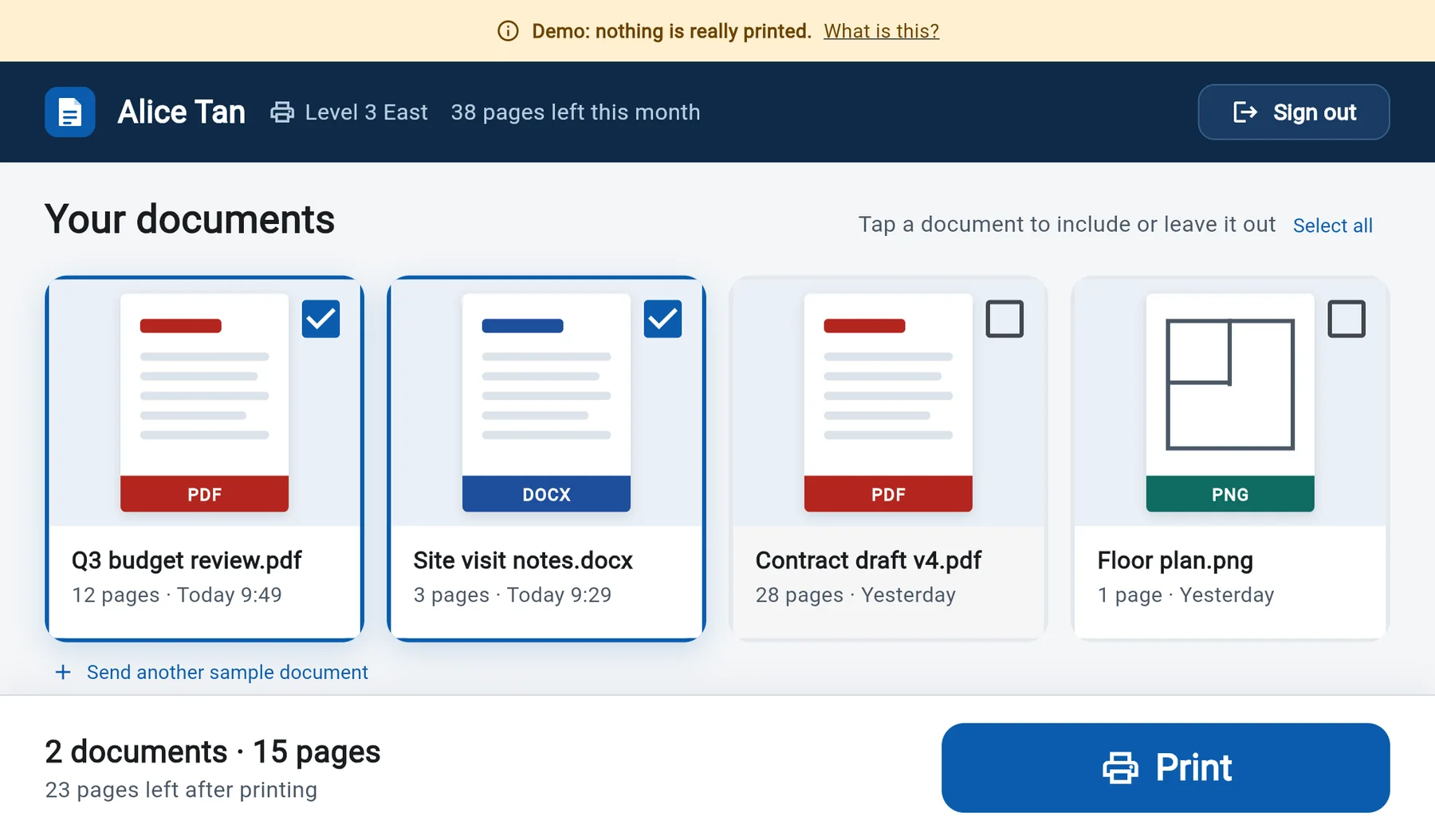
Choose what to print 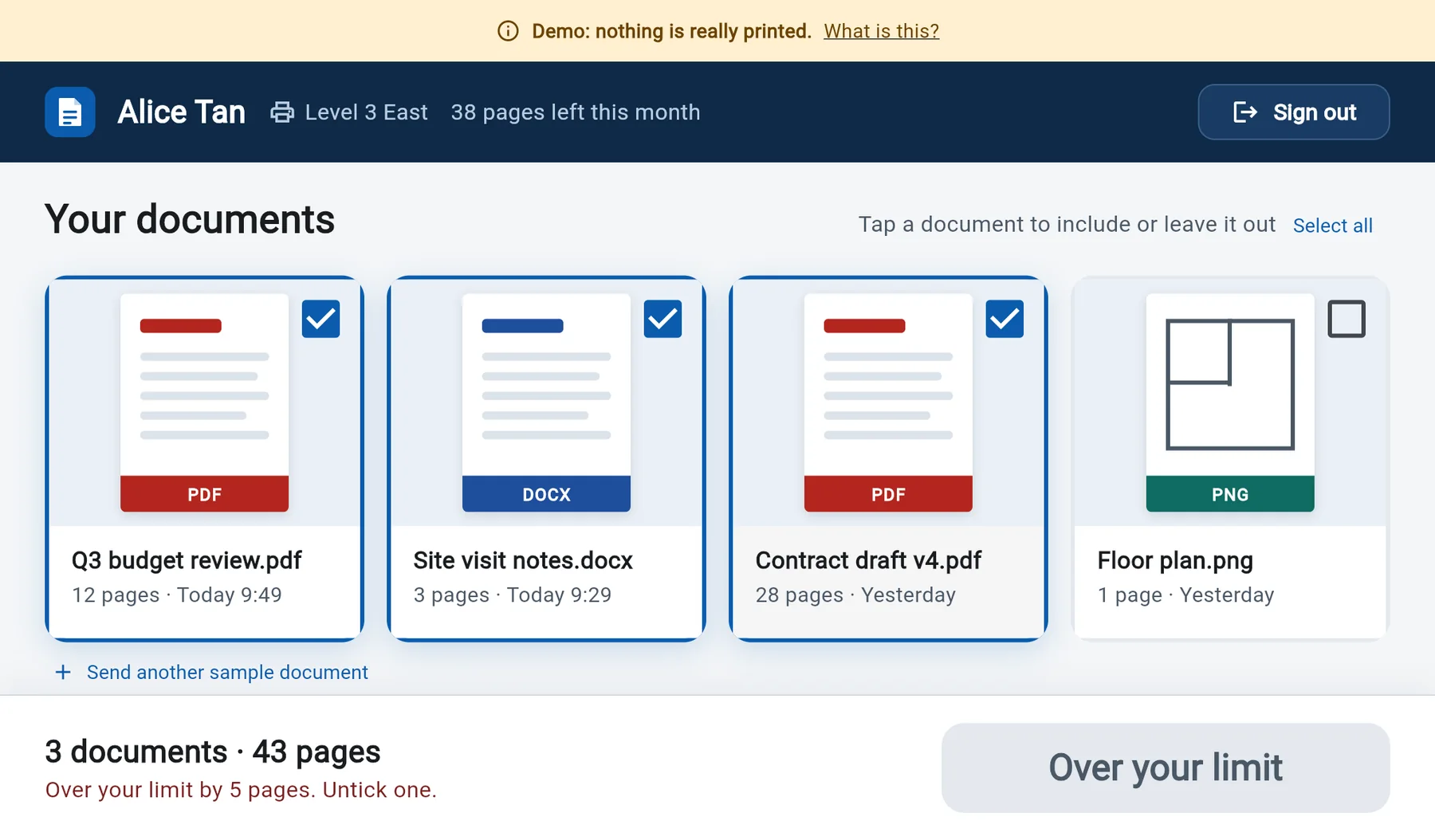
Over the limit 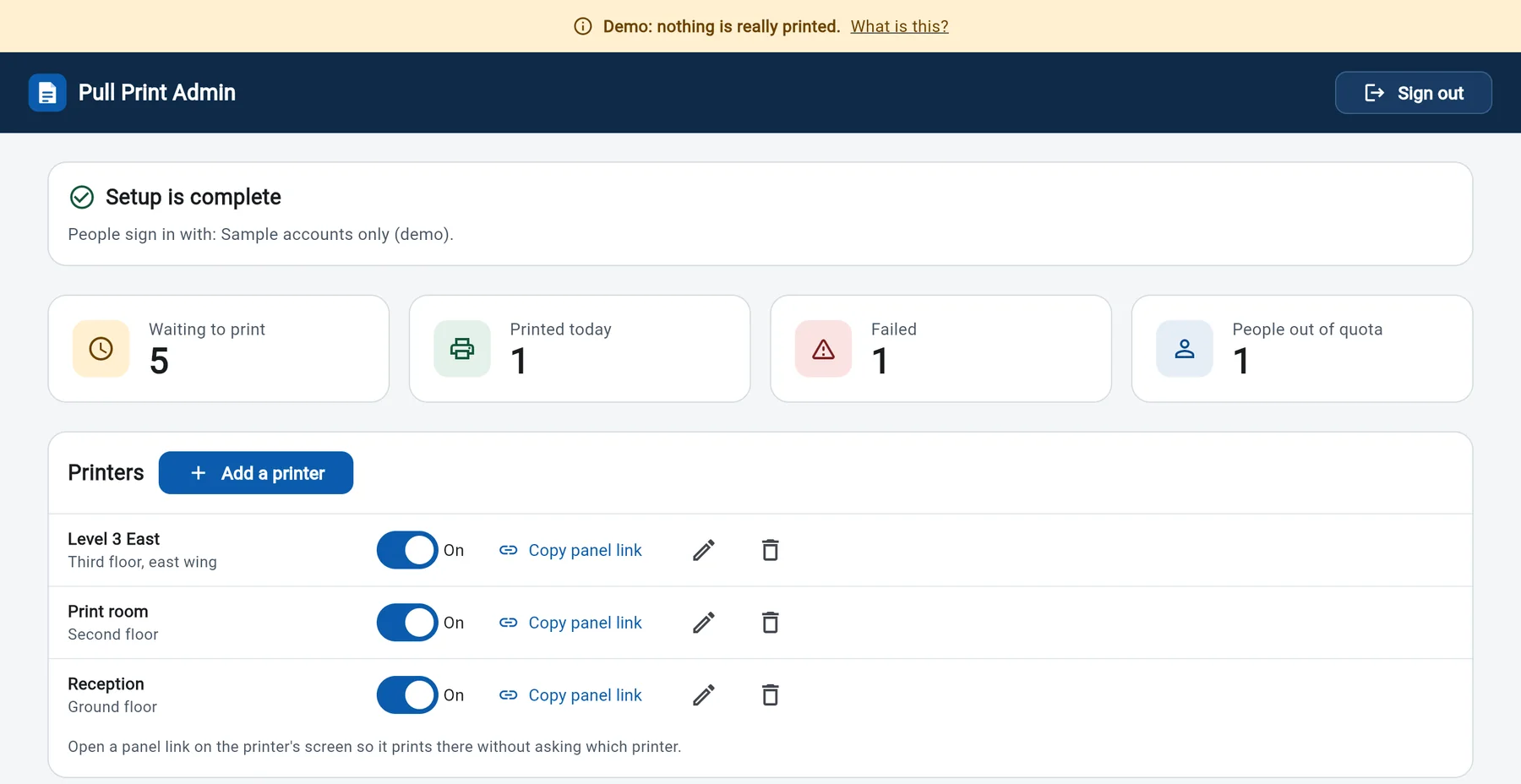
Admin overview 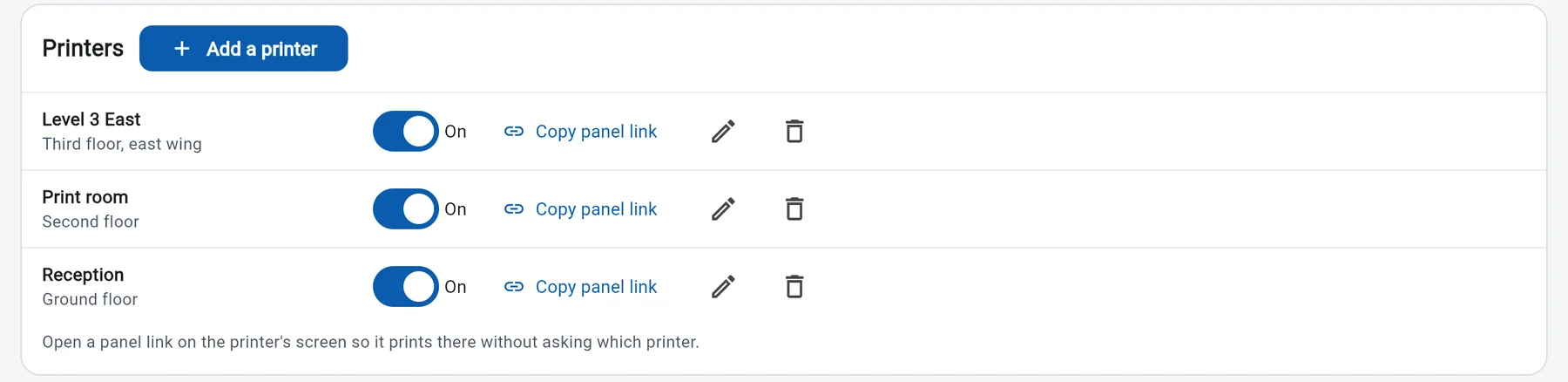
Printers
Choose what to print 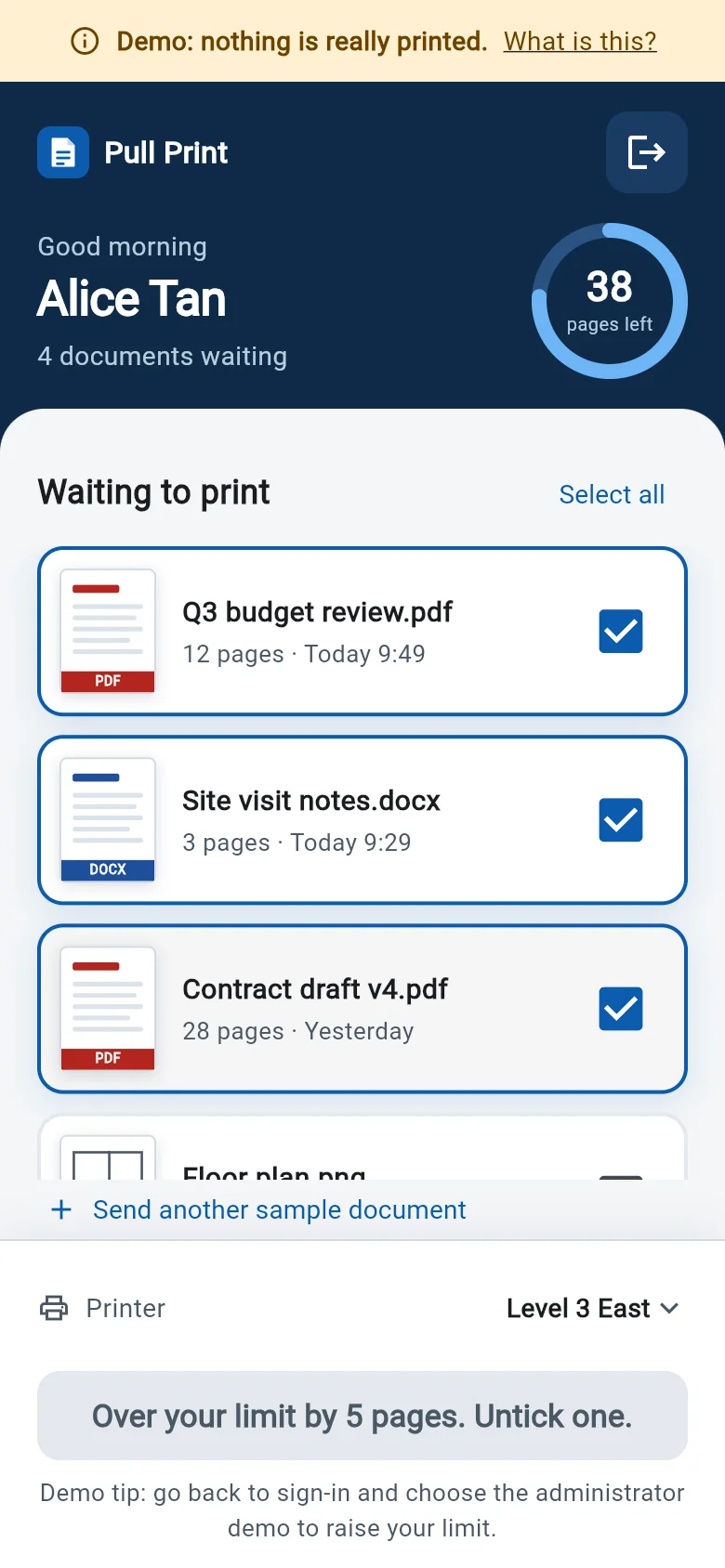
Over the limit 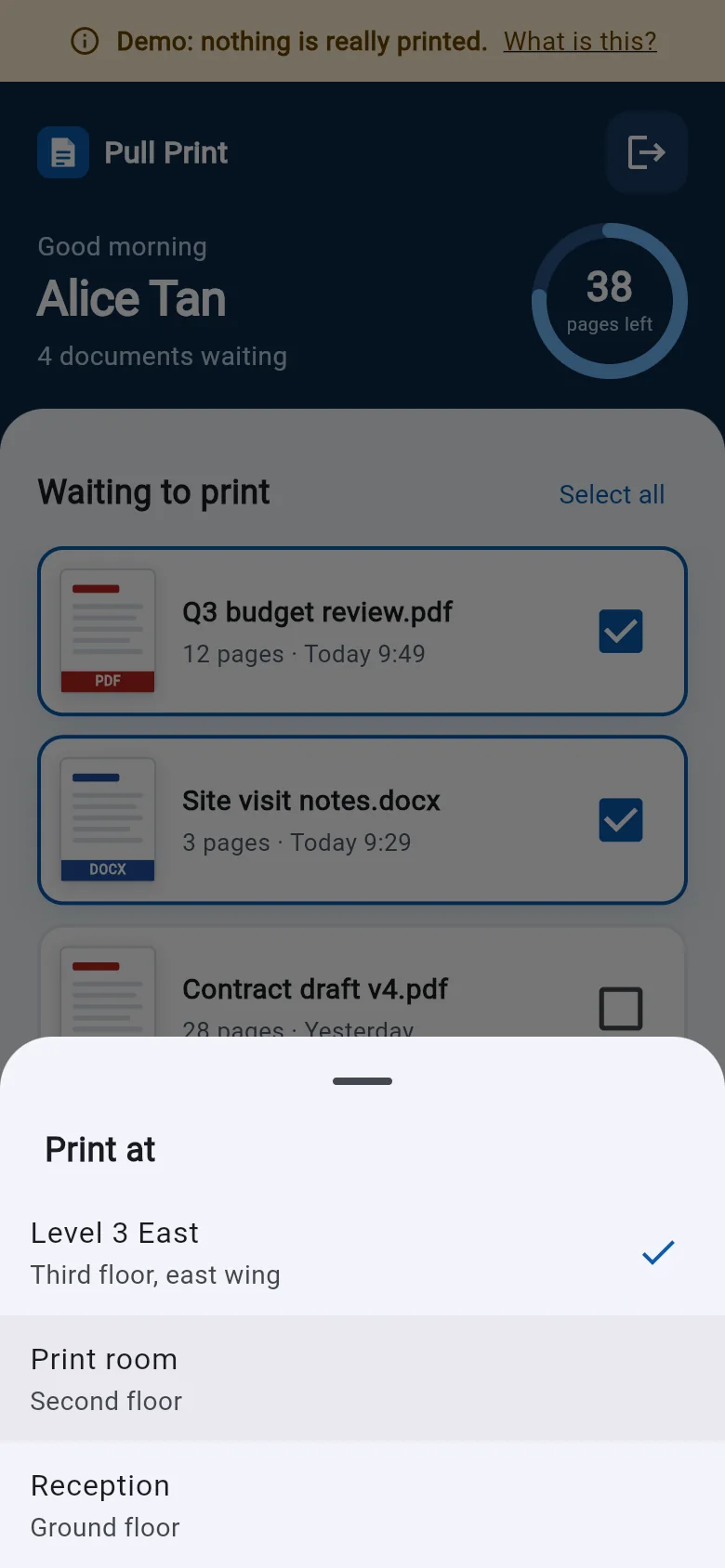
Pick a printer 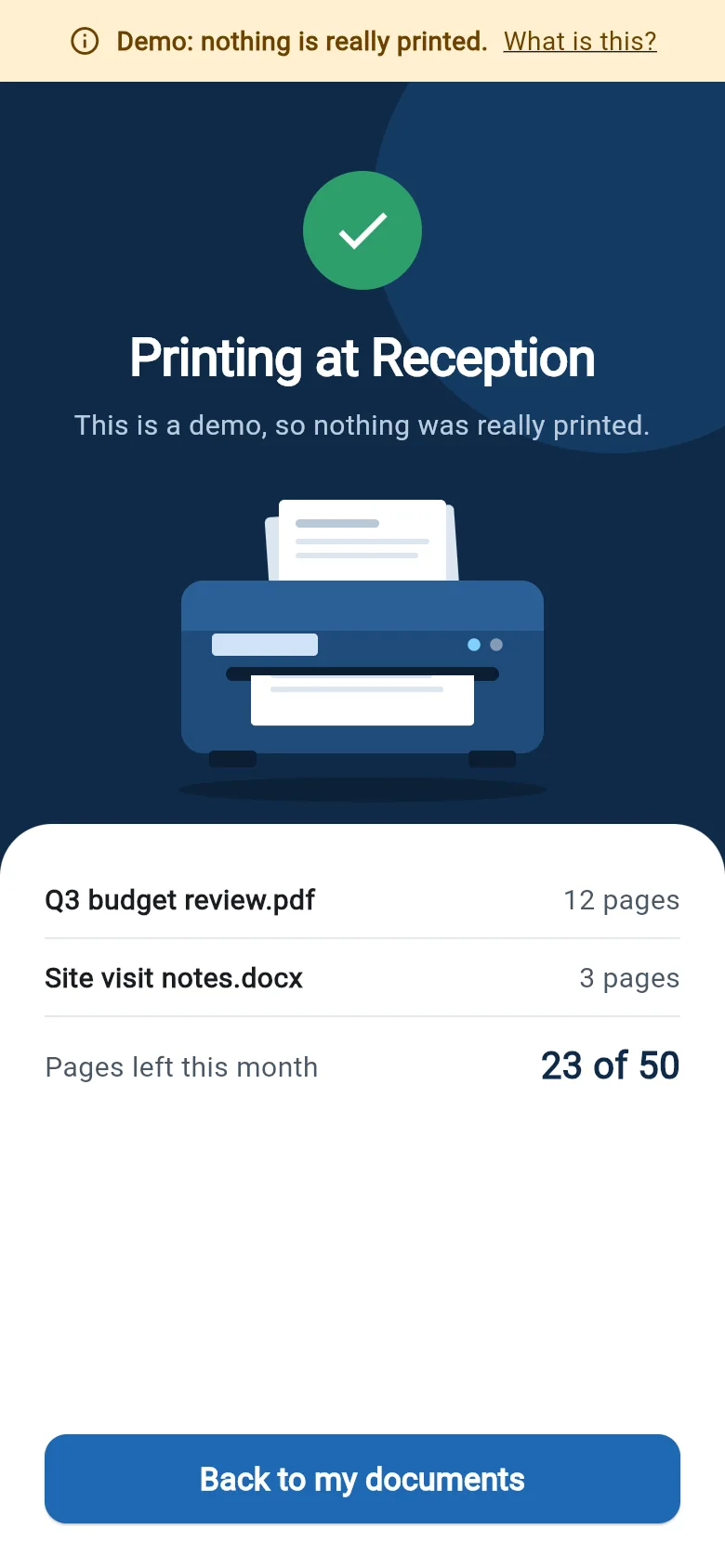
Printed
How it works
Send once, walk up, sign in, press Print.
- 1You send a documentClient uploads the jobFrom your computer or phone.Flutter app to the API.
- 2The server holds itJob queueNothing prints yet.Stored per user.
- 3You sign in at the printerOpenID ConnectWith your work account.Microsoft 365 or Google Workspace.
- 4You tick and press PrintQuota checkWithin your page limit.Enforced server side.
- 5It prints, onceRelease to printerPages are counted.Job marked printed.
What it is built with
The tools I chose, and the simple reason for each.The stack and why each piece earned its place.
-

Flutter
One client for phone and printer screens, and the web demo.
-

ASP.NET Core
A solid server for queues, rules and sign-in.
-

Vercel
Hosts the free demo.
What I did
- Designed the phone, printer and admin screens.
- Built the client and the server rules.
- Built the demo so anyone can try it safely.
- Wrote the plain-words documentation.
By the numbers
- 50pages a month, by default
- 5steps on a phone
- 1place to manage everything
- 0pages really printed in the demo
Read the docs
Every project has written documentation in plain words. Start at the top and go as deep as you like.
Try it
It runs in your browser on sample data, so nothing is really printed.